How To See Coordinates in Minecraft
Coordinates are a useful tool that can help you orient yourself in your world, find your way back to friends, or return to lost items after an unfortunate accident. Thankfully, both Bedrock and Java Edition have built-in ways to view your current position.
What Do Coordinates Mean?
Minecraft coordinates are shown as X, Y, Z.
X shows your east and west position.
Y shows your height.
Z shows your north and south position.
For example, if your coordinates are 100, 64, -250, that means you are at X 100, Y 64, and Z -250 in your world.
How To See Coordinates in Bedrock Edition
In Bedrock Edition, coordinates can be enabled through the world settings or with a command.
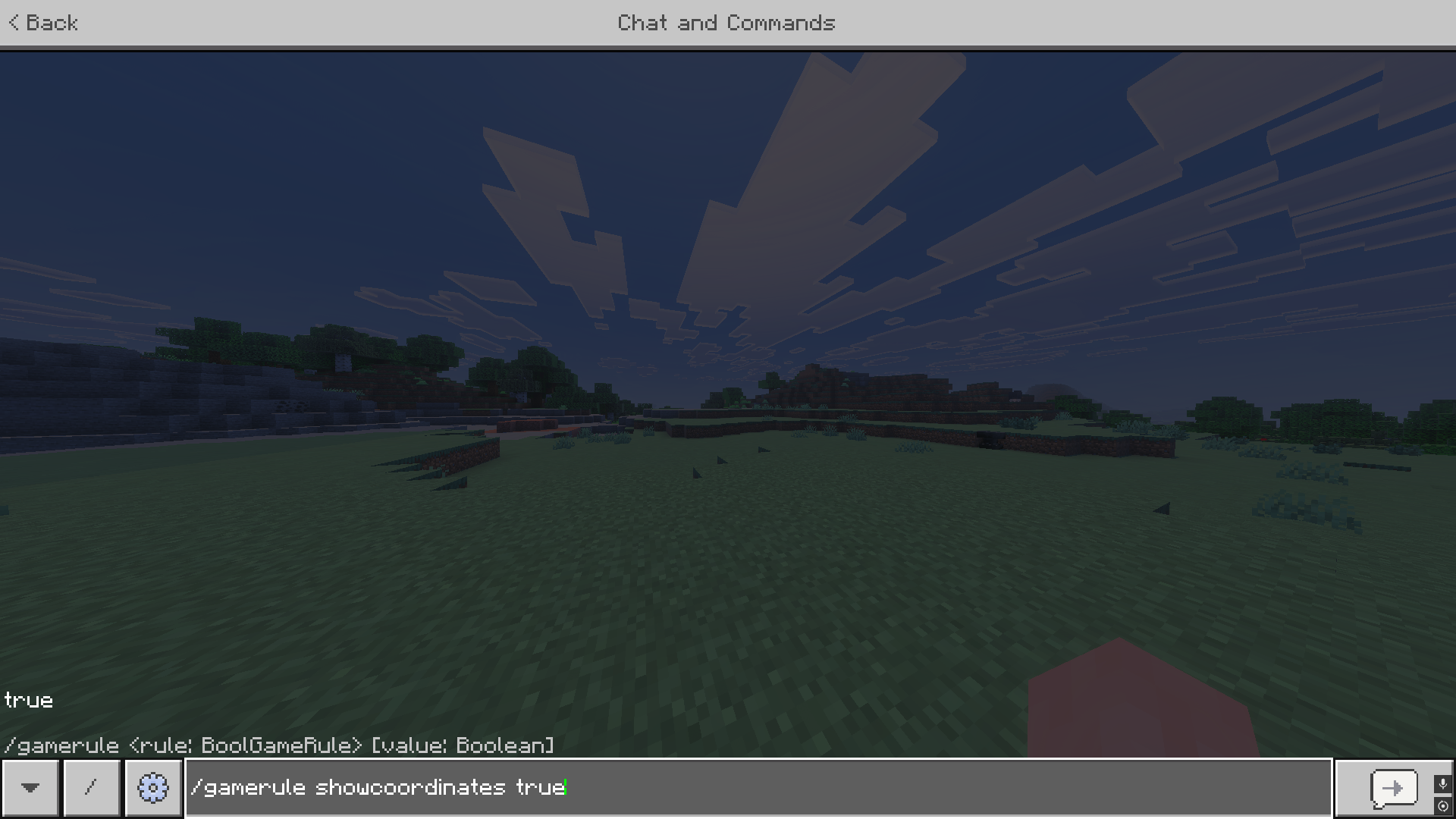
If you are playing on a server, you may need operator permissions to run the command. Coordinates can be enabled by entering the following command in chat or the server console:
/gamerule showcoordinates true
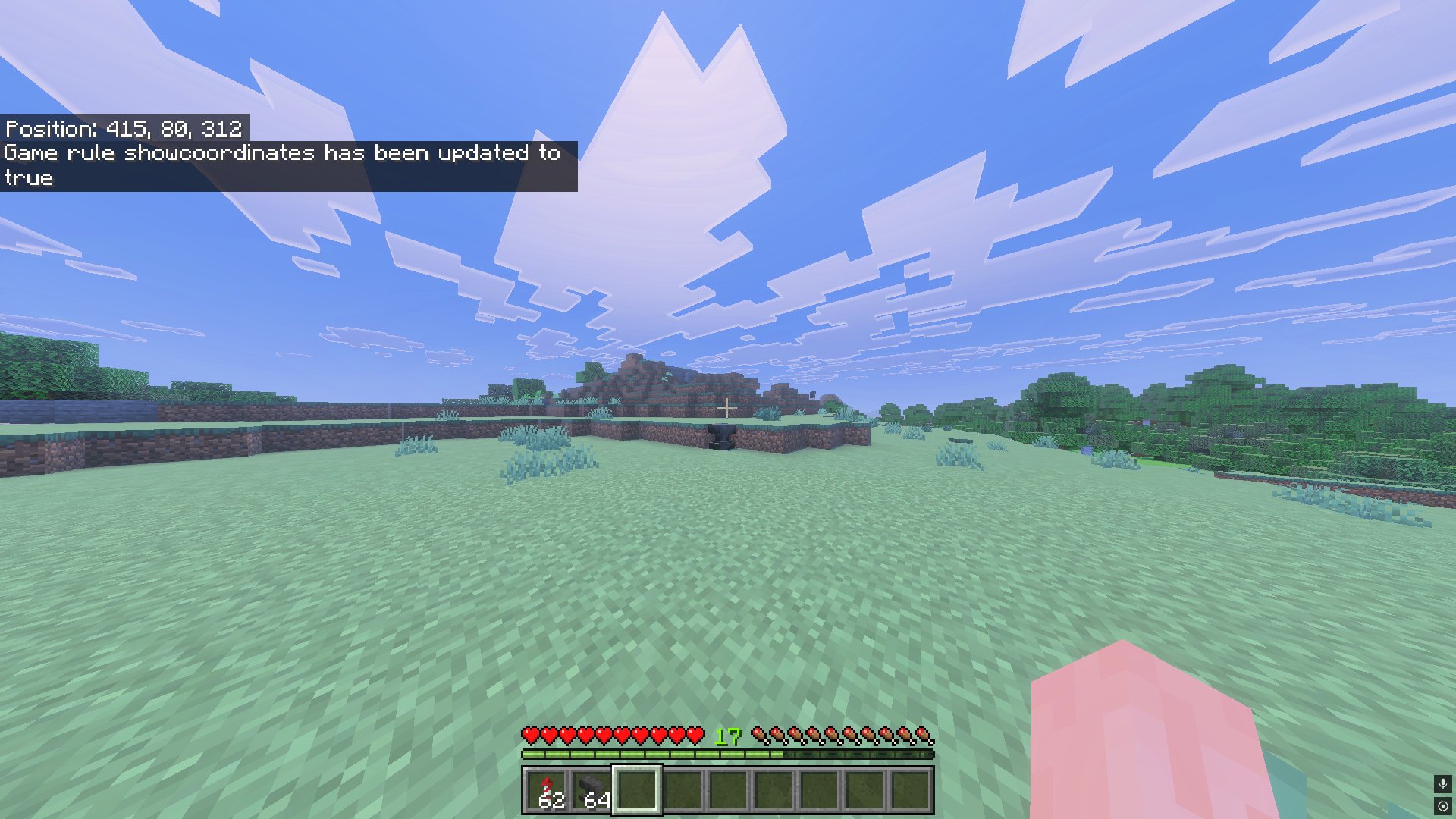
Once enabled, coordinates will appear in the top left corner of the screen.
How To See Coordinates in Java Edition
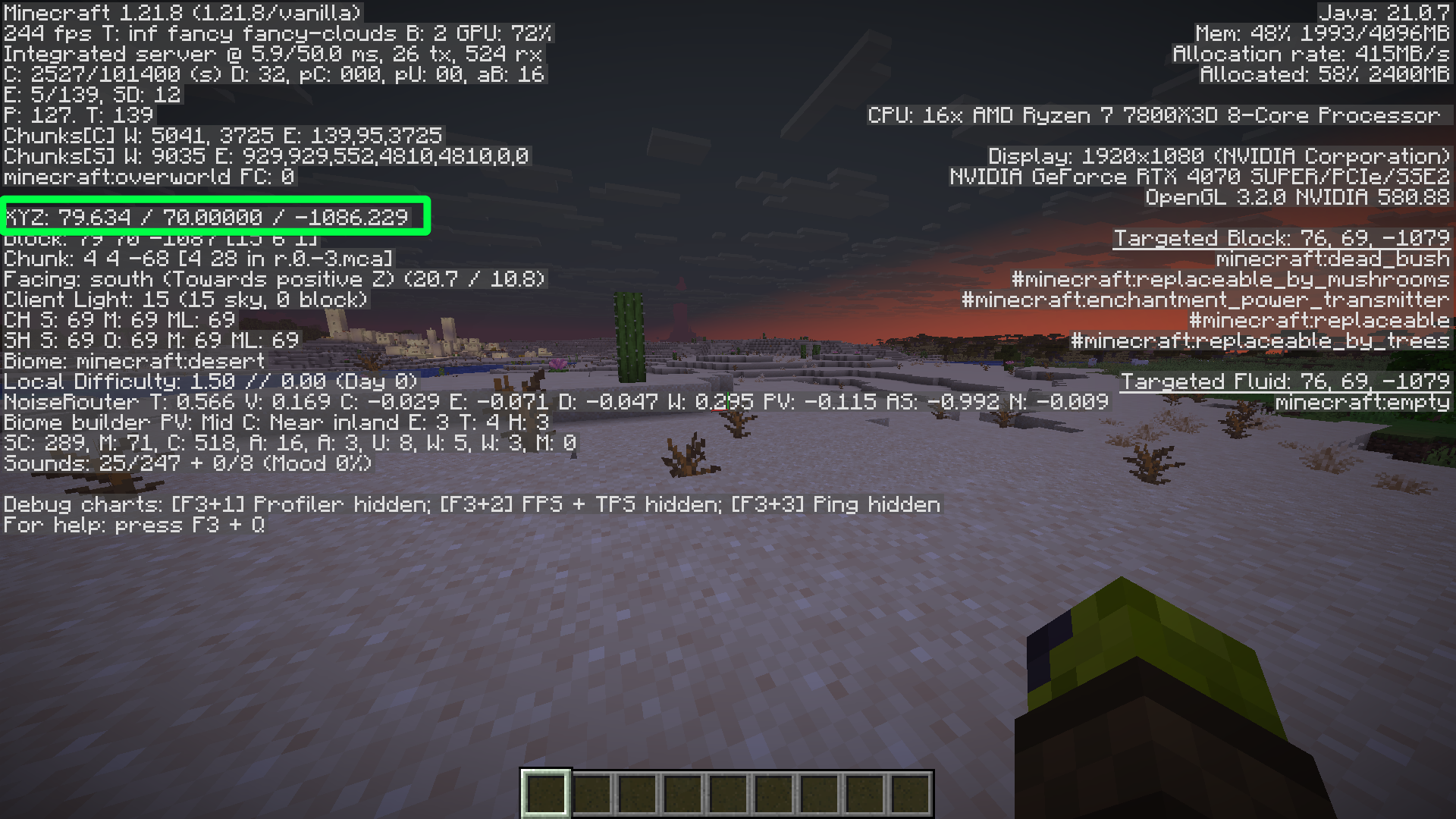
In Java Edition, coordinates can be viewed through the debug menu. This can be opened by pressing F3.
You will see a large amount of information on the screen, but the section you are looking for is labeled XYZ, usually near the top left. This line shows your current coordinates.
If you are on a laptop or smaller keyboard, you may need to press Fn + F3 instead.
Why Are My Coordinates Not Showing?
If coordinates are not appearing in Java Edition, Reduced Debug Info may be enabled. This can hide parts of the debug menu, including coordinates.
You can check your game settings, but on some multiplayer servers, this may be controlled by the server instead.
For Bedrock Edition, make sure Show Coordinates is enabled in the world settings, or that
/gamerule showcoordinates true has been used.
How To Turn Coordinates Off
If you no longer want coordinates to show in Bedrock Edition, you can turn them off by using:
/gamerule showcoordinates false
In Java Edition, simply press F3 again to close the debug menu.
Useful Coordinate Tips
Before exploring far from home, write down the coordinates of your base. This makes it much easier to find your way back later.
Coordinates are also useful for marking important locations, such as villages, strongholds, spawners, or where you died.
In Java Edition, F3 + G can also show chunk borders, which can be useful for farms, slime chunks, and building projects.
Coordinates in the Nether
Coordinates are especially useful when traveling through the Nether. In Minecraft, 1 block traveled in the Nether is equal to 8 blocks in the Overworld.
This means Nether portals can be used to travel long distances much faster than walking across the Overworld.
For example, if your base is around X: 800, Z: 800 in the Overworld, the matching Nether coordinates would be around X: 100, Z: 100.